Manage inventory and stock
Create items, receive lots, record consumption, and investigate stock alerts.
Open in MilkSageCreate items and opening stock
- Open Inventory → Items and choose Add item.
- Enter the item code, name, category, unit, and any reorder point. Categories include Feed, Medicine, Semen, and Other.
- Use opening stock for quantities already held when you start using MilkSage. Enter lot code, opening date, quantity, unit cost, and any expiry date.
- Opening quantities add to existing stock; they do not replace its balance. Use Add another lot for separate lots, then review Stock and the item’s Lots after recording.
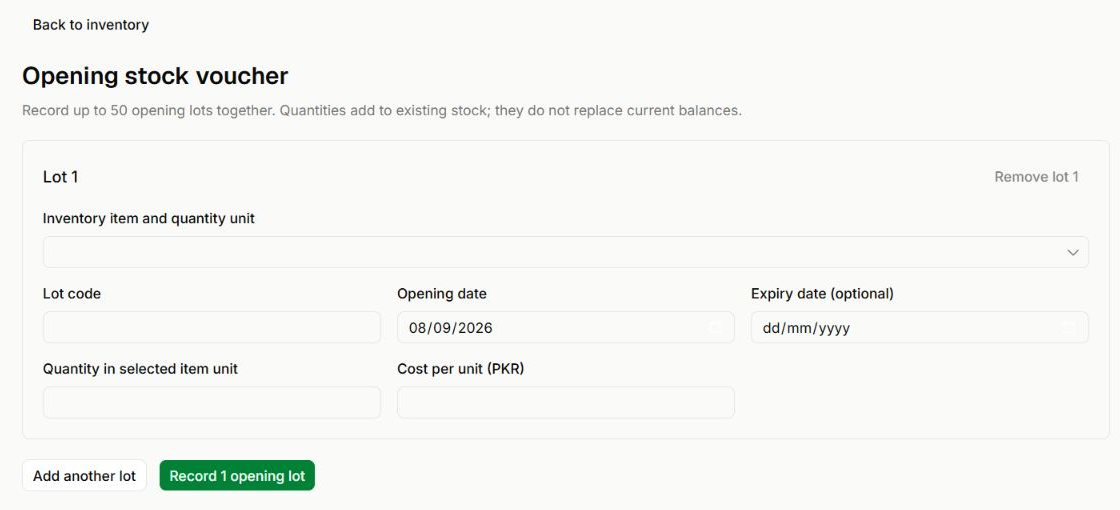
Enter opening stock as lots
Inventory → Opening stock voucher
- Select the inventory item first so the quantity uses the correct unit.
- Enter the lot code, opening date, quantity, and cost per unit. Expiry date is optional.
- Add another lot is for a separate lot. Opening quantities add to the existing stock balance.
Receive and consume stock
- Add suppliers in Suppliers when you need to track who provides stock.
- Use the item’s stock receipt action for a received lot, completing the received date, quantity, cost, and expiry information.
- Use stock consumption for a standalone deduction. Feeding and medicine workflows can record their own related consumption.
- Review Movements and item history to trace changes to balances.
Before you continue
Avoid recording the same receipt or consumption twice. Purchases and operational workflows may already create the stock movement.
Use alerts and reversals
Alerts helps you review reorder and expiry issues. Check the item’s lots and movement history before making an adjustment. Use the relevant reversal action for an incorrect movement; the app preserves its history. Stock consumption uses eligible lots in first-in, first-out order.
Related guides
Reserve, post, and reverse feeding
Review ingredient requirements before recording actual consumption.
Record a stock purchase
Connect a purchase with its item, lot, cost, and accounting details.
Import existing farm records
Validate spreadsheet rows before committing animals, health events, or inventory items.