Work & finances
View and download reports
Choose a report, set its parameters, and download a snapshot of farm records.
Open in MilkSagePreview a report
- Open Reports and choose Summary or a module: Animals, Breeding, Health, Milk, Feeding, Inventory, Payroll, or Accounts.
- Select a report available to your role.
- Set the requested dates and other parameters. Some payroll reports require a selected pay run.
- Review the displayed rows or totals before requesting a file.
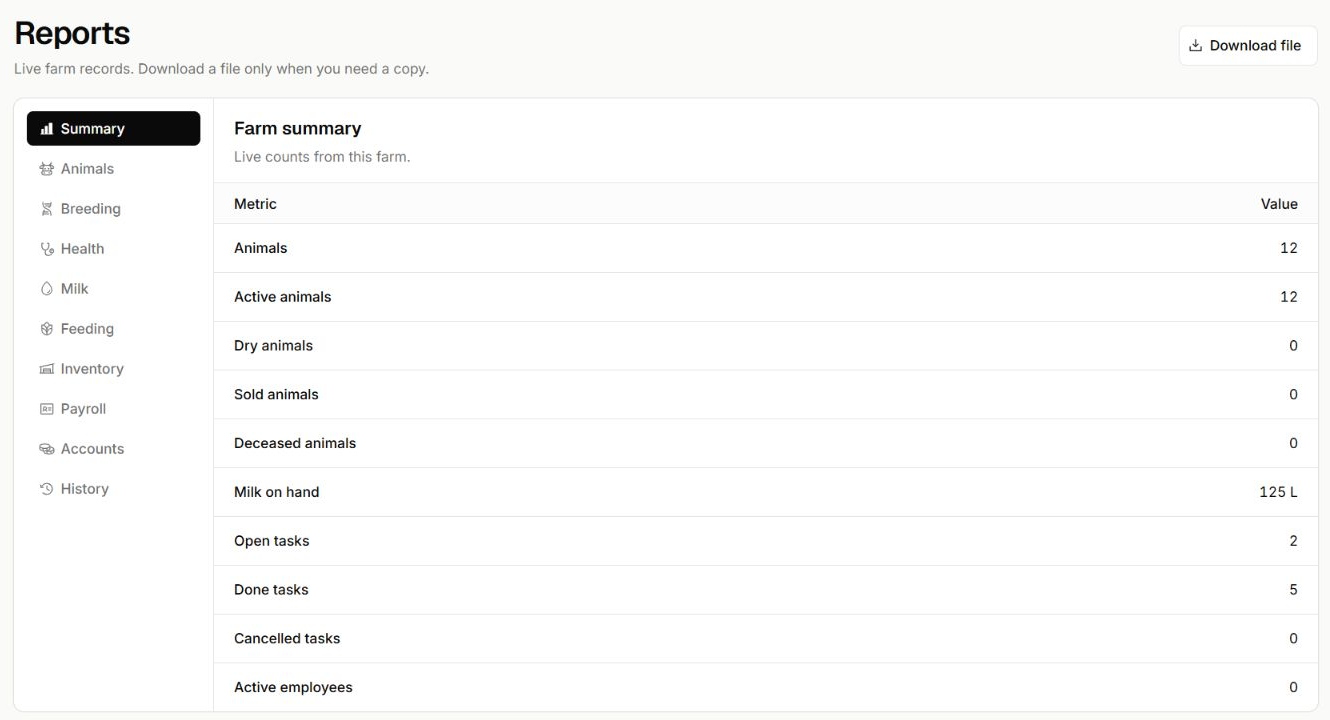
Preview the records before exporting
Reports → Summary · Sample workspace
- Select a report section from the navigation beside the preview.
- The summary shows live counts and balances. Download file starts a separate export request.
Download a file
- Use Download file and confirm the report and its parameters.
- Choose an available format: CSV, Excel, PDF, or JSON.
- Use History to follow the request from Queued or Running to Complete, or inspect a Failed request.
- Download the completed file. Generate a new file if you need records changed since that report was generated.
Before you continue
A downloaded report is a snapshot of the data read during generation. It does not update when the farm records change.
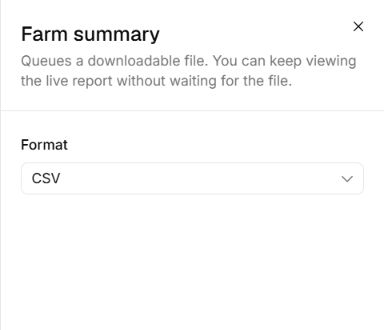
Choose the file format
Farm summary download · Format selector
- Use Format to choose the type of file you need. CSV is selected in this example.
- The fields depend on the selected report. Submit Download file, then follow its progress in History.
Related guides
Set up accounts and record transactions
Prepare the chart and periods, then follow entries through the ledger and statements.
Manage employees, attendance, and pay
Prepare staff records, review a pay run, and record payments and advances.
Resolve common problems
Check farm context, access, dates, and record state before retrying an operation.